How to use the barcode scanner
Tracking has never been quicker or simpler.
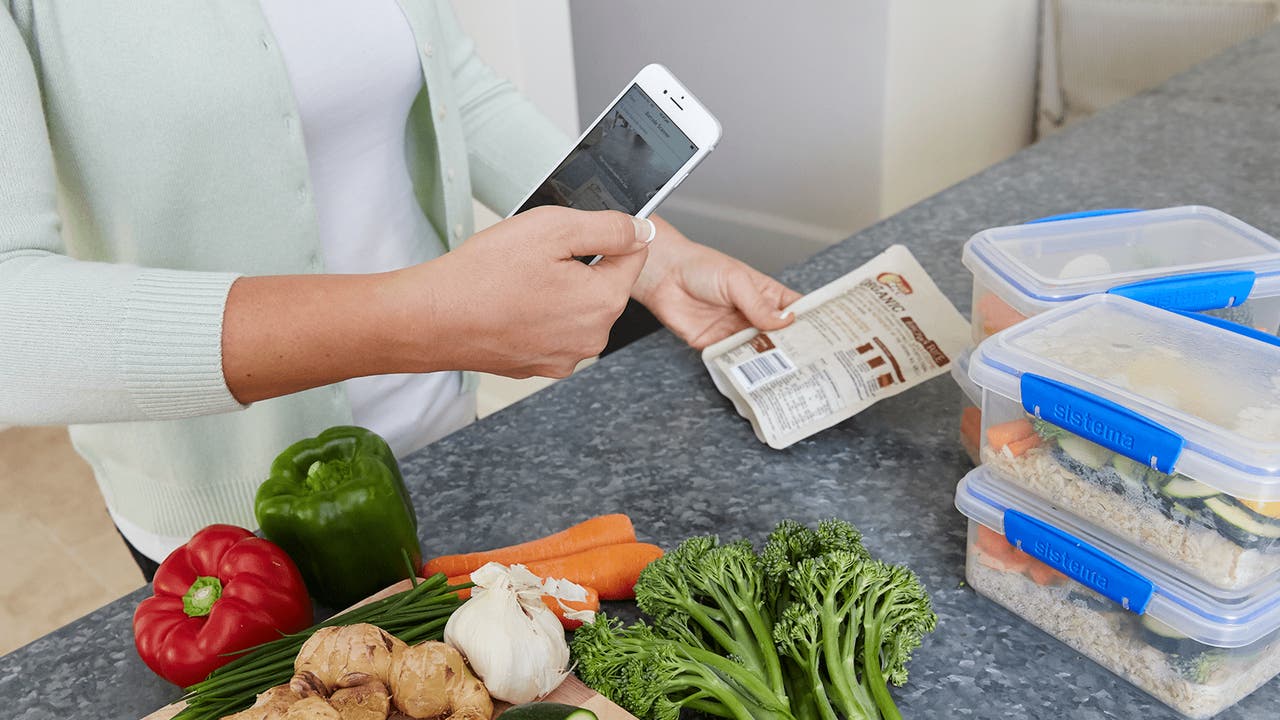
How to track foods using the barcode scanner
To quickly track a food, take advantage of one of the coolest features in the WW app, our barcode scanner. Follow these steps if you are using a iOS and Android device:
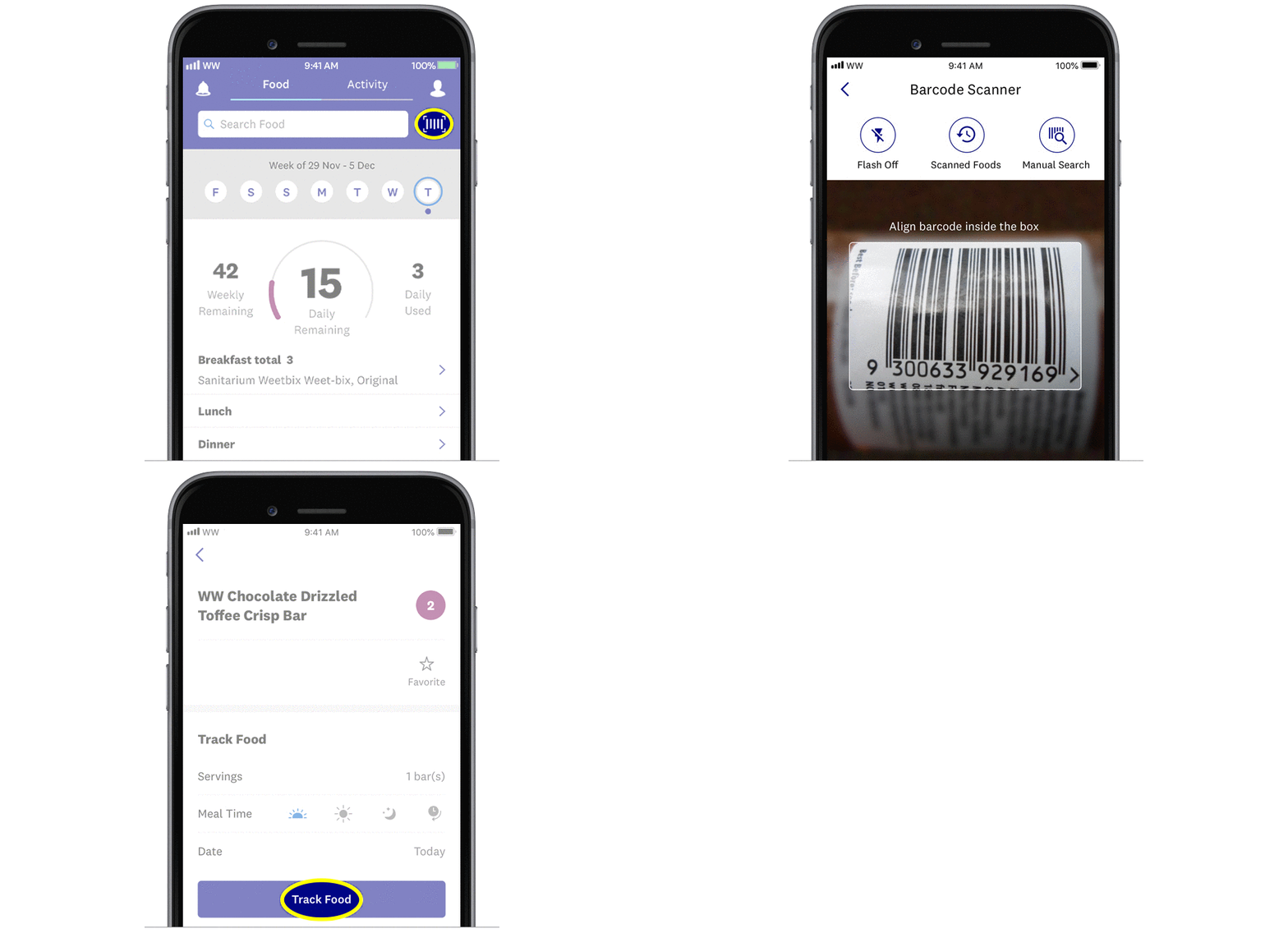
Tap the barcode icon to the left of the search bar on your dashboard.
Align the box that pops up on your screen with the product barcode until it scans (this should only take a few seconds).
If the item is a WW-verified food (a food added by qualified WW nutritionists), all of the information you need will display, including the Points value and nutritional data. Edit serving or portion size accordingly, then tap 'Track'.
You can also manually type the barcode digits using the ‘manual search’ function.
Some foods are member-added
If you scan a barcode and it doesn't exist in our database, a selection of member-added foods similar to the item you scanned will display, which you can then choose to track.
Please note, these are not WW-verified foods. We call these 'crowdsourced' foods, which means members input their own nutritional data to generate a Points value.
Crowdsourced foods are reliant on people inputting the data correctly, so can potentially be inaccurate. We recommend you cross-check nutritional data before tracking if possible.
Crowdsourcing and ZeroPoint foods
When it comes to member-added or crowdsourced foods, the Points algorithm does not account for ZeroPoint foods.
All Points values for WW-verified foods containing ZeroPoint foods are calculated by our in-house team of qualified nutritionists, who adjust the Points value based on ZeroPoint ingredients.
If a member adds a food item that is either a ZeroPoint food or contains ZeroPoint foods, the incorrect Points value will be generated.
Here's an example:
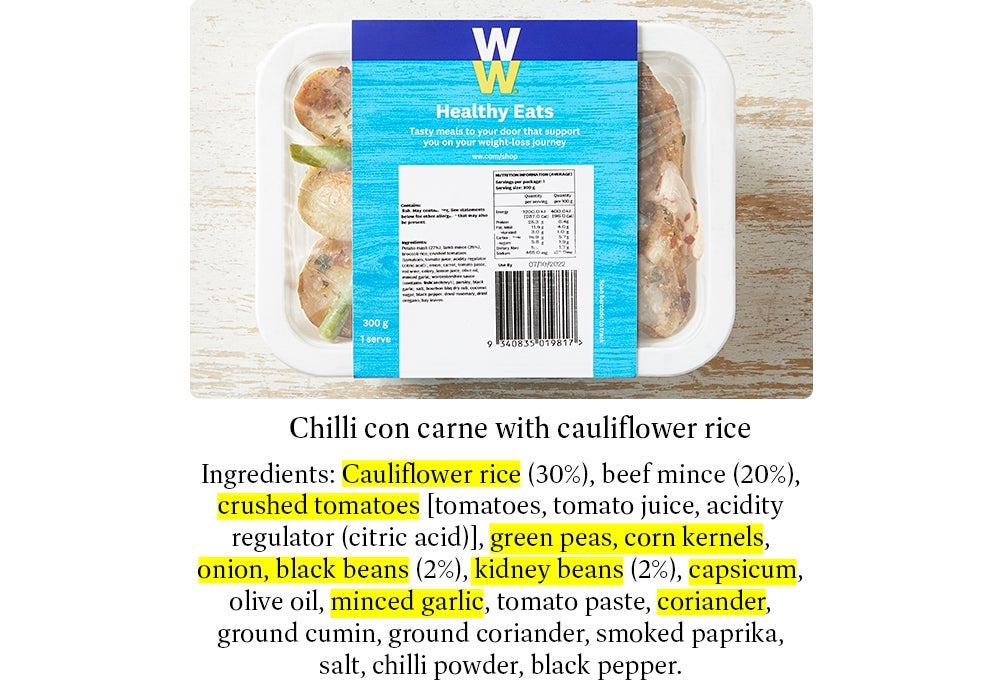
The WW food team identifies the ZeroPoint foods - highlighted above in yellow - that need to be deducted from the total Points value.
This WW Healthy Eats meal contains a number of ZeroPoint foods, which lowers the Points value. However, if a member attempted to add this meal themselves, the ZeroPoint foods wouldn’t be accounted for.
In a nutshell, the Points value returned for a crowdsourced food can often be higher than if it were a WW-approved food. These foods are not common in our WW app, but something to look out for.
How to add a food
If you scan a barcode and it doesn't return any results, or another member has added the item but the nutritional data is wrong, you can add the item yourself.
Scan the item's barcode, then tap 'Create food'.
Add values into the required fields - including kilojoules, protein, total fat, saturated fat, carbohydrates, sugar, fibre and sodium - to generate a Points value. Remember to adjust the portion size.
Scan at the supermarket
In addition to helping you track your food, the barcode scanner also comes in handy at the supermarket. Use it to scan items on the shelves to find the Points value and decide whether it will fit into your Budget this week.