What's new in the WeightWatchers app
We’re constantly making improvements to the app with new features and bug fixes. Here’s our guide to help you make the most of the tools and updated features available.
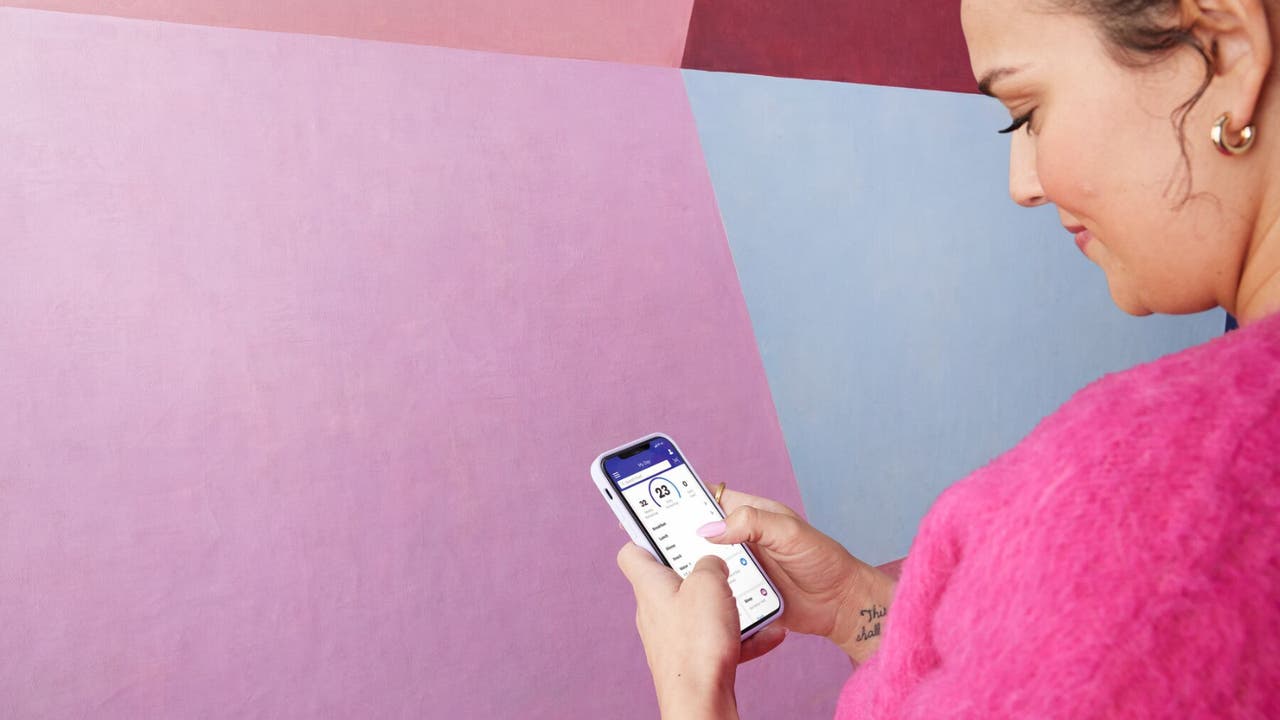
What can you do in the app?
KEY FEATURES:
Food, fitness/activity, water, weight, and sleep trackers
NEW food search and tracking means you need fewer taps and less time to log what you eat
Barcode scanner to find the Points for any packaged food
NEW'What to Eat' feature helps you make healthier choices when dining out or cooking at home
6,000+ recipes and database of over 100 restaurants
NEW'My Progress' provides a weekly report to help you see what’s working and what to improve
Access to an exclusive, members-only social network ‘Connect’
24/7 live WeightWatchers coach chat
How to navigate the app
There are 5 main navigation points you can use to find useful tools and information to support you on your journey.
My Day
Main menu
My Progress
What to eat
Connect
1. My Day (dashboard)
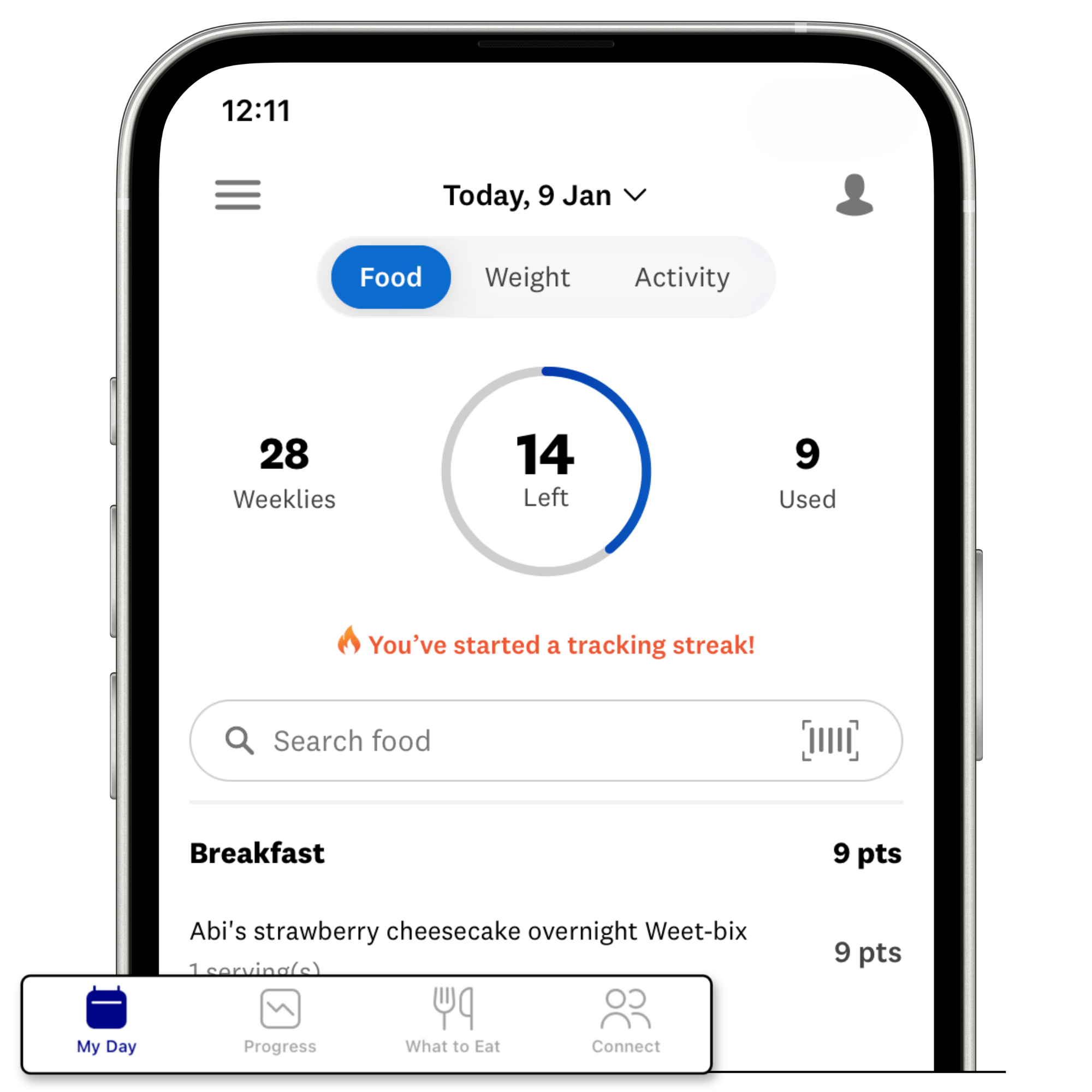
Welcome to your main dashboard – the hub for all your health progress tracking needs (including food, activity, weight and water). By tracking a meal, you can begin a 'streak'; the more meals you log each day, the longer your streak will get! To search for foods, simply start typing in the search bar. Add items to your food and activity dashboard by tapping on them. If you need to scan a barcode, just click on the barcode icon located on the right side of the search bar.
2. Main menu
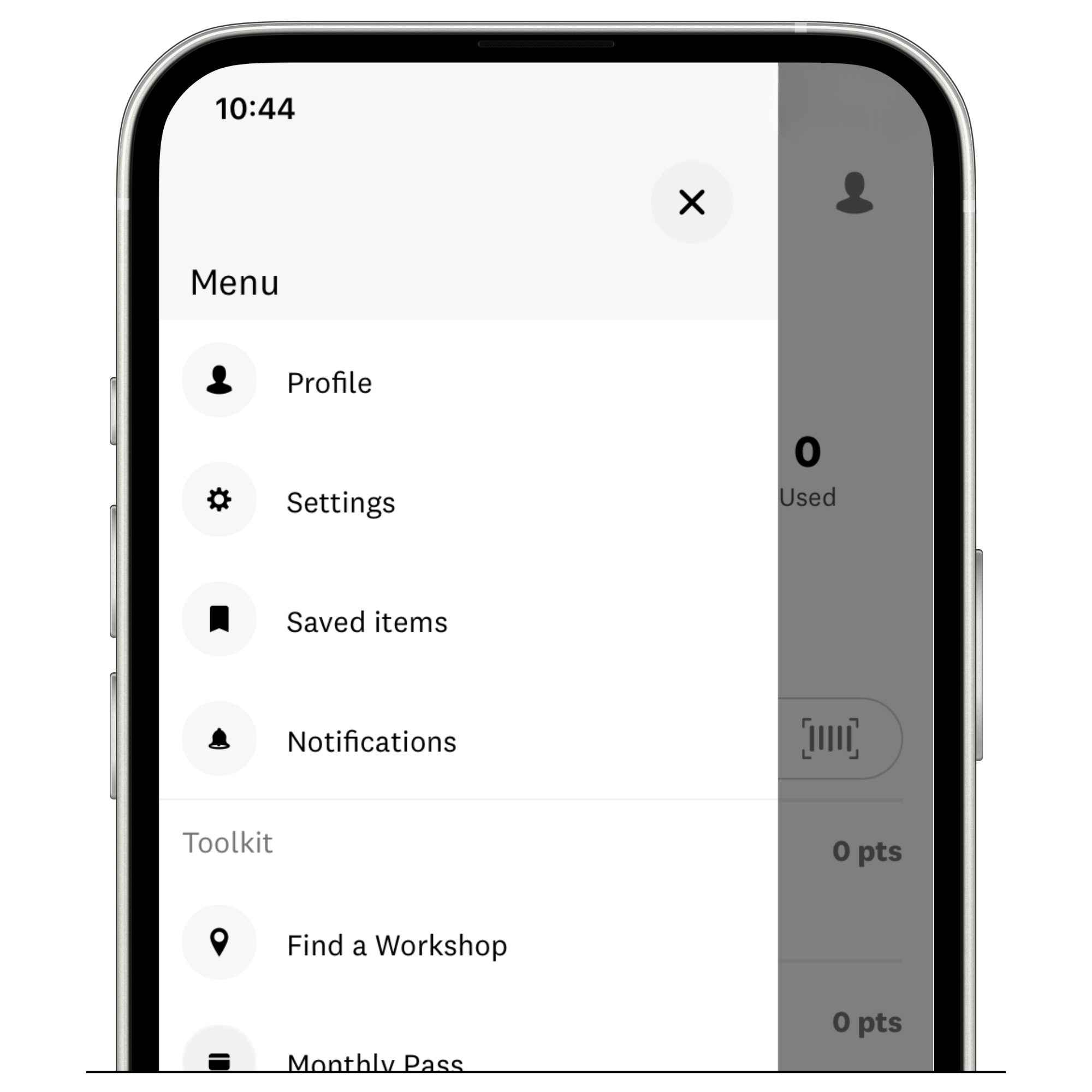
Accessing the app's features is easy with our main menu. You can find it by selecting the menu icon (three horizontal lines) located in the top left corner. Once selected, the full app menu will appear, providing you with access to your account profile, tracking tools, and help centre. For extra resources, scroll down to the 'Toolkit' section and find 'Articles & Events'. Here you can browse Weekly Techniques, WW Live events, Workshop finder, and access helpful articles and program information.
3. My Progress
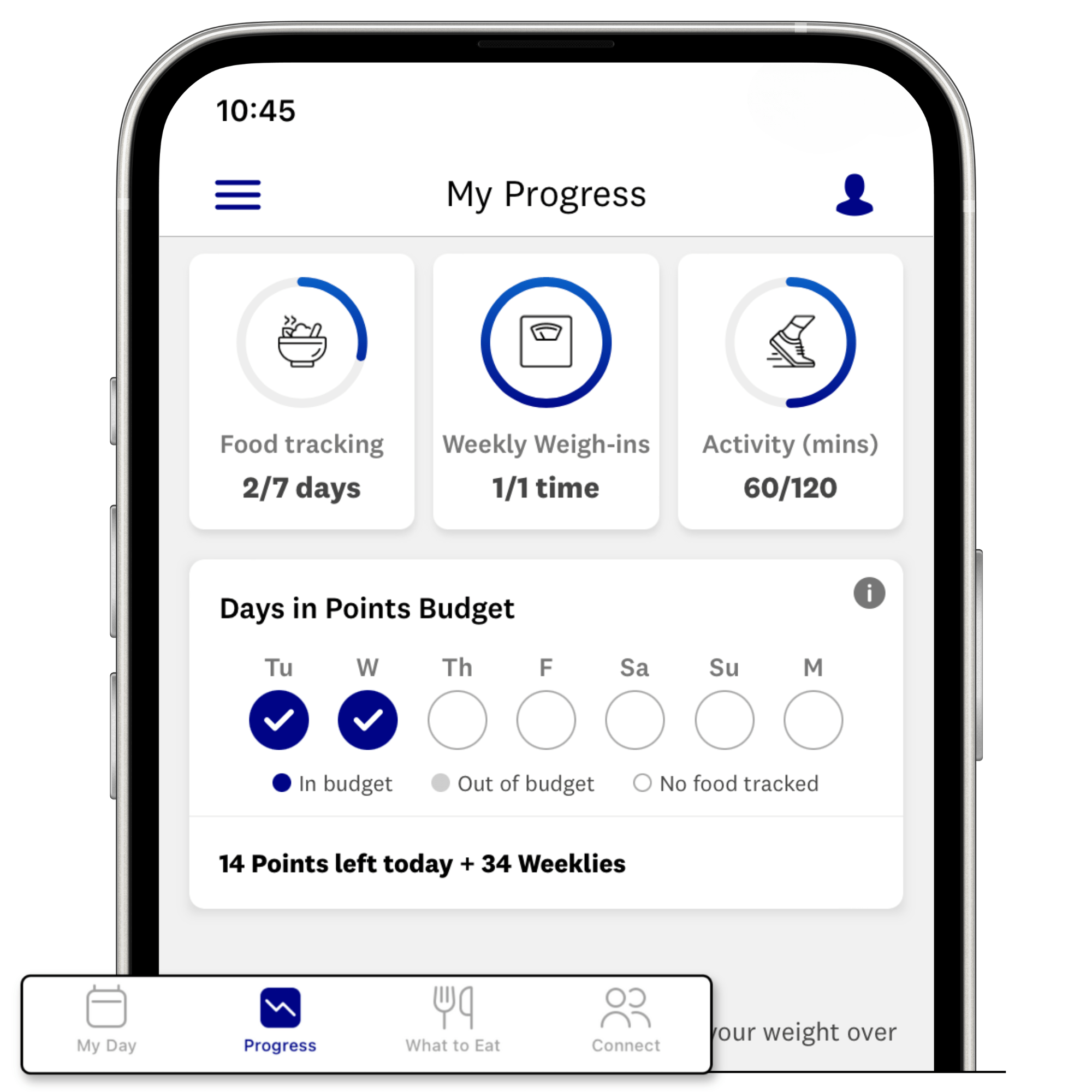
See all your progress stats in one place, such as food tracking, weight trends, number of days in Points Budget and activity, so you can easily spot what's changed, what's working, and where to improve.
4. What to Eat
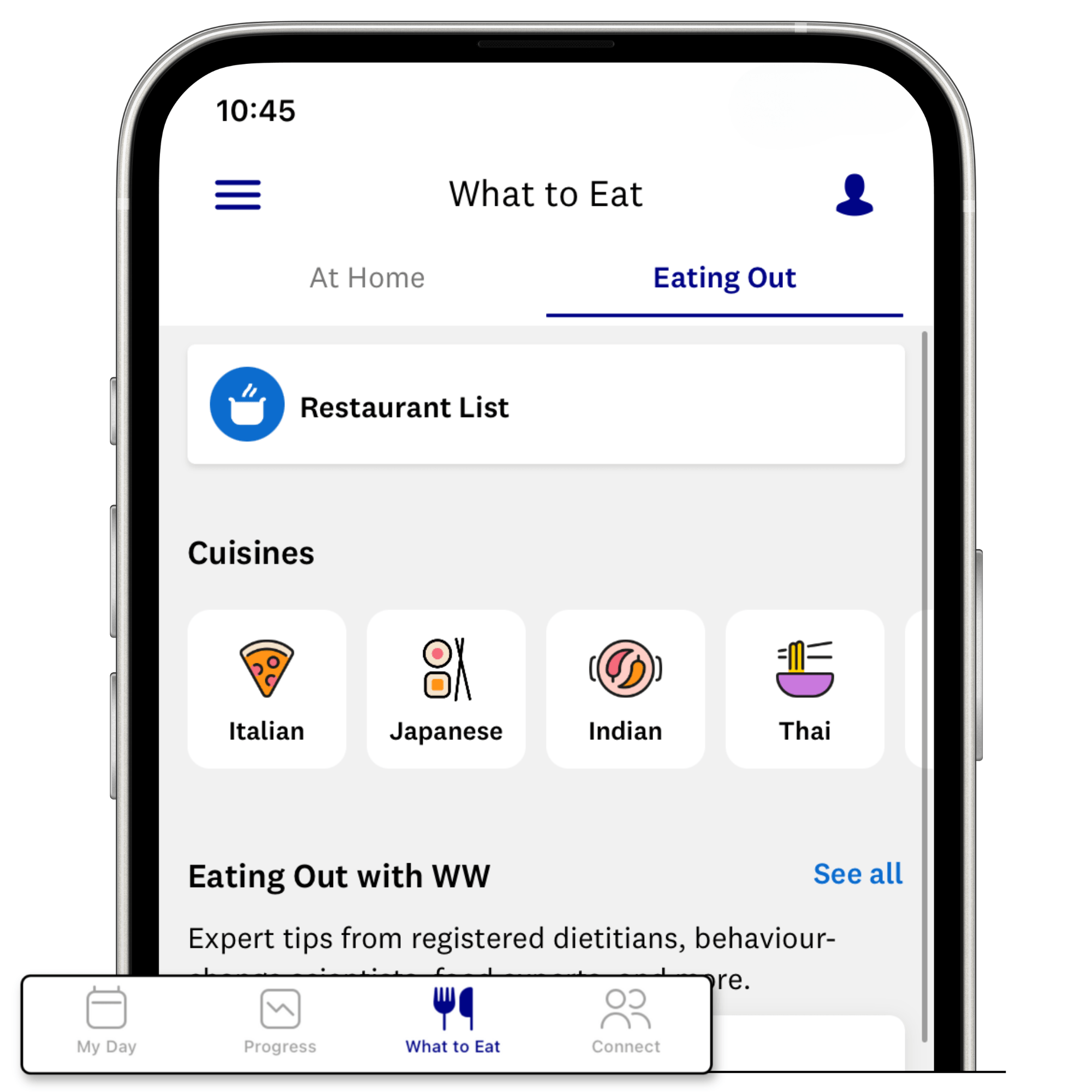
The 'What to Eat' feature makes it easy to find what you’re looking for when it comes to food. Choose where you’ll be eating—at home or eating out—and go from there. Here you will find:
Tons of tips. Our guides help you make healthy swaps, create a satisfying meal, and otherwise build your confidence.
Major meal inspo. Search by your favourite ingredient, cuisine, or dish to find Point-friendly options by selecting ‘Recipes’. Or scroll through featured recipes.
Recipe collections. If our 6,000+ recipes feel like…a lot, browse curated lists, like easy weeknight meals, low-Point recipes, meals for 1 or 2, and seasonal favourites.
Cuisine guides. Facing an unfamiliar menu or just looking for new go-tos? We’ll show you healthier options at Thai, Indian, Italian, and other types of restaurants.
ZeroPoint foods. We’ve made it easier to find and reference your full list with our handy ZPF guide in the “At Home” section of What to Eat.
5. Connect
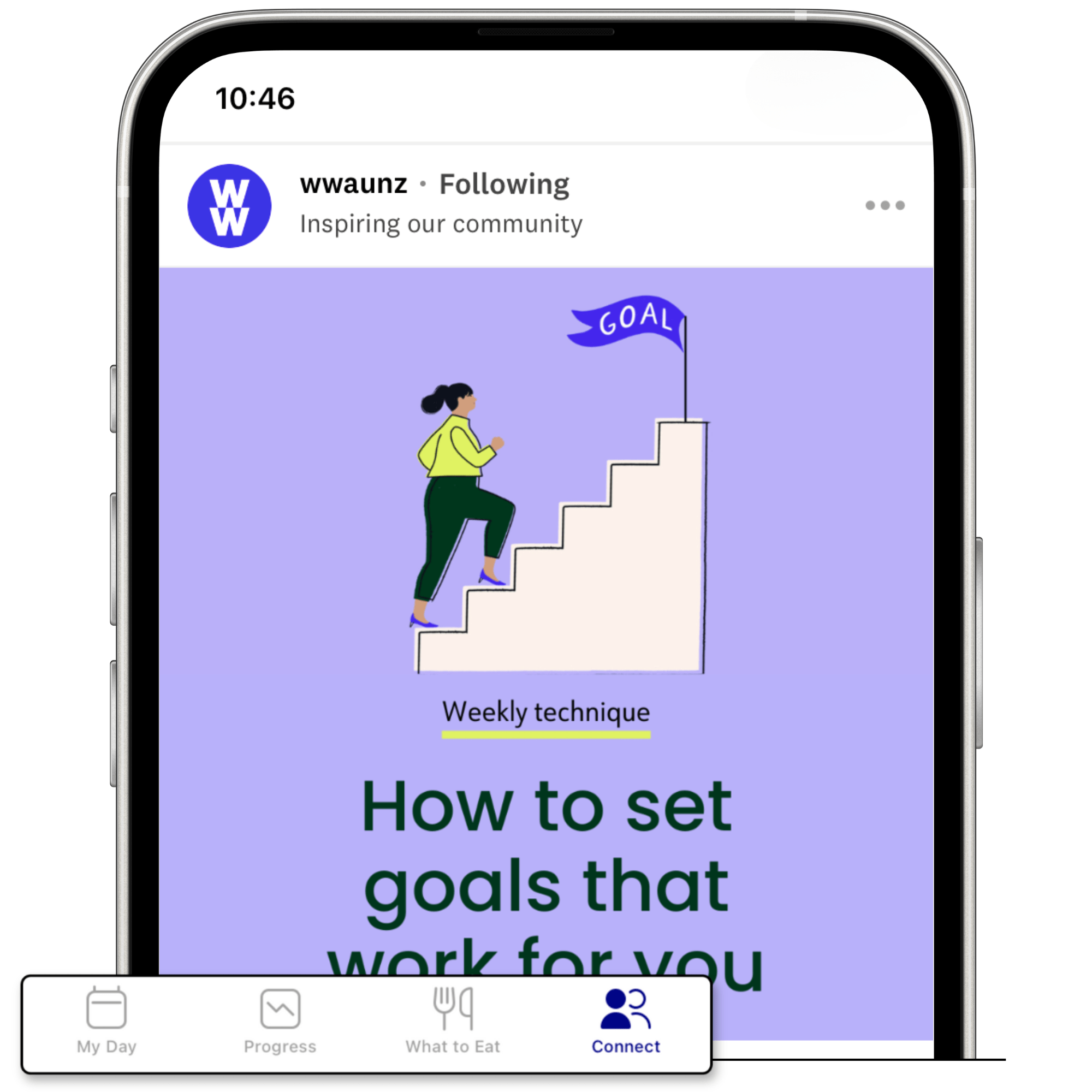
Connect with like-minded members and share your journey on our private digital community. Take advantage of groups, make posts about your progress, and engage with other members by liking and commenting on their posts.
To get started, simply click on the Connect icon located in the bottom right of the navigation bar. You can preview the most popular groups along the top or click 'See all' to browse all available groups. Once you have found a group that interests you, hit 'Join' and introduce yourself!
Weight tracking
Track your weight from your My Day dashboard by simply tapping on 'Weight' located at the top of your navigation bar. Here you can log your weight (or sync your smart scales to automatically track for you) and view your progress graphs and milestone charms.
Easy food tracking
From your My Day dashboard, type the name of your food in the search bar. Select the food you want to track from the list. Select a mealtime and servings, then tap ‘Track’. Your daily Points and weeklies will automatically update.
For easy tracking you can also use any of the following features:
'Barcode Scanner': Simply scan any product’s barcode.
'Quick Add': Enter the Points value if you already know it by tapping the '+' symbol.
'Create': Using the 'Quick Add' feature you can tap the 'Show Calculator' drop down, enter the nutritional information from the back of a packaged product and calculate the Points. You can also create a meal or recipe under 'Recipes' in the 'What to Eat' feature.
'My Foods': Located in the main menu is where you can find any food, recipe or meal you have created.
'Saved recipes': Located under 'Recipes' in 'What to Eat' is where you can find any foods, activity or posts you have saved with the bookmark icon.
'Recents': The header ‘Recents’ will show you previous foods, recipes or meals you have tracked. Refer here for convenience when tracking to save having to search for the item again.
Search and find recipes
To access the recipe section, head to the 'What to Eat' feature then tap 'Recipes'. Here you can browse over 6,000 recipes by typing a recipe, ingredient or cuisine name into the search bar.
You can use the filters to narrow down your search or sort by popularity or prep time. If you find a recipe you like but want to customise it, tap 'Add' under the ingredients and save the recipe as your own.
Recipe builder
To create recipes from scratch, head to the 'What to Eat' feature and tap 'Create' in the top corner. Add your ingredients, instructions and serving size. Name your recipe and save it.
Activity tracking
To access the activity dashboard, simply click on 'Activity' located at the top of your navigation bar. From there, you'll be able to view your weekly added activity Points, active minutes, and the number of steps taken.
If you want to manually track an activity, type it into the search bar and select it from the list. Add your duration then 'Track Activity'.
If you have an Apple watch, wireless scales, activity tracker or Apple Health, you can sync it with your account. Go to settings via the main menu or via your profile icon in the top right corner. Tap on 'Connected Devices', select your device and connect.
How to sync your activity device
24/7 live chat with a coach
Whether you need advice, support, or technical help, our coaches are available 24/7 to assist you through our Live Chat feature. Simply navigate to the main menu in the top left corner and find '24/7 Live Coaching' by scrolling down to the ‘Help’ section.
Note: Our virtual assistant will initially assist you with brief technical queries. To contact a coach, type 'connect me with a coach'.